Technology & Computing · Internet & networks
A web page's journey to your screen
Follow a web address from name lookup to request and response, see what an error code tells you, and watch the browser turn the files into a page.

What you will learn
- Distinguish a DNS name lookup from an HTTP request.
- Explain why a browser may need several resources to display one page.
- Explain what a 404 response does and doesn't imply.
- Use comparisons to tell a problem with one site from a broader connection problem.
Lesson 1 of 4 · 4 min
What happens when you type a web address
You type example.org and press Enter. Before anything can appear, your browser has two problems. It doesn't know where that site's computer is, and it hasn't asked it for anything yet.
Your browser is a client, software that asks another computer for things. The computer that answers is a server. They can sit on opposite sides of the world. It works because both follow the same published rules for names and for messages.
Computers on the internet find each other by number. An IP address looks like 192.0.2.172, which suits machines and is hopeless to remember. So websites also get names, such as example.org.
The Domain Name System, or DNS, is the internet's address book. Your browser hands it the name and gets back the IP address of a server.
That lookup only answers "where should the request go?" No part of the page has arrived yet.
Now the browser can ask. It uses HTTP, the Hypertext Transfer Protocol. A request is short. It names a method, usually GET, and a path such as /animals that says which page it wants.
The server answers with a status code and, if all went well, the content. The code 200 means OK.
So there are two separate steps, finding the address and requesting the page, and either can fail without the other. A name can lead to a server that then says no. A healthy server is unreachable if its name can't be found.
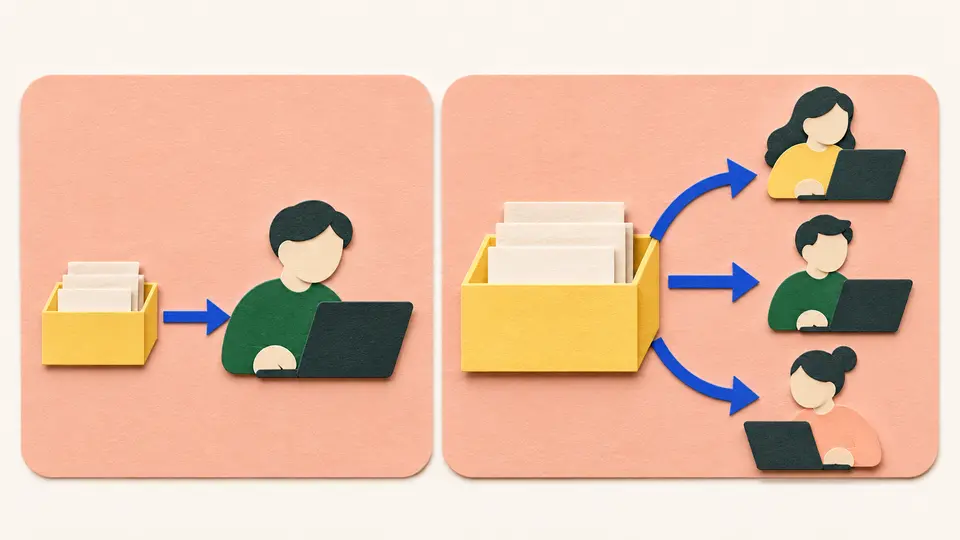
The first response is usually an HTML file, and it isn't the whole page. HTML holds the text and structure. It also names other files the page needs. CSS sets the look, JavaScript adds behavior, and images and fonts come separately. The browser requests each one.
It adds up. In the HTTP Archive's 2024 survey, the median page, the one in the middle of the range, made 71 requests on a desktop computer and 66 on a phone.
The browser then puts the pieces together. The picture on your screen is built on your own device.
Try to recallHow can a web page show its text while one photograph is missing?
The text and the photograph can be separate resources. The browser may receive the HTML while the image request fails, is delayed or returns no usable image.
Lessons in this topic
What happens when you type a web address
Follow a web address through its first two jobs, looking up where the server is and asking it for a page, and see why one page takes dozens of requests.
What a 404 and other web errors tell you
Read a failed page as evidence. See whether a server answered at all, what codes such as 404 mean, and which quick comparisons narrow down where the problem lies.
What a cache saves and what HTTPS protects
See how a browser reuses stored copies in place of downloading again, and what HTTPS does and doesn't promise about a site.
How a browser turns code into a picture
Follow the browser from HTML and CSS to layout and paint, and see why one script can hold up a whole page and why pages jump as images arrive.
Three quick stories from this topic
Error 418, I'm a teapot
The web has an error code, 418, that means the server is a teapot
It began as an April Fools' joke in 1998 about controlling coffee pots over the internet. A teapot asked to brew coffee answers 418. The joke spread so widely that the HTTP standard reserved the number, so it can't be given a serious meaning.
The serious codes work the same way
A 404 means the server couldn't find what you asked for. A 500 means the server itself failed. Any code at all means a server answered you.
A code names a category
A status code tells you what kind of problem occurred and stops there. It's the place to start looking for the cause.
One page, about 70 requests
Loading one typical web page takes about 70 separate requests
In the HTTP Archive's 2024 survey, the median page on a phone made 66 requests, including 22 JavaScript files, 16 images and 8 stylesheets. On desktop it was 71. The first file only lists what the page needs, and the browser fetches each piece separately.
Why a page can half load
Each piece is its own request, so one can fail while the rest arrive. That's how you get the text of an article with an empty box where a photo should be.
Two jobs before the first request
Before any of it, the browser looks up the site's name to find the server's address. Finding the address and asking for the page are separate steps, and either can fail.
The misunderstood padlock
Chrome decided to retire its padlock icon after finding only 11% of people understood it
The padlock only ever meant the connection was encrypted. Many people took it as a sign the site could be trusted, and nearly all phishing sites show it too. In 2023 Chrome announced a neutral settings icon to take its place.
What HTTPS protects
HTTPS encrypts what travels between your browser and a site, so nobody along the way can read it.
What it can't tell you
Encryption says nothing about who runs the site or whether their claims are true. A scam site can have a perfectly secure connection.
Sources
- How the web works - Learn web development | MDN, MDN Web Docs
- What is a Domain Name? - Learn web development | MDN, MDN Web Docs
- Page Weight | 2024 | The Web Almanac by HTTP Archive, HTTP Archive
- 418 I'm a teapot - HTTP, MDN Web Docs
- An Update on the Lock Icon, Chromium Blog, Google